Добавляя новое устройство Вы соглашаетесь с правилами и условиями договора.
Нажмите на кнопку **Добавить устройство**. В поле **Помещение** выберите общежитие и номер комнаты, на аренду которого у Вас есть действующий договор. Если в выпадающем списке значения отсутствуют, значит договор еще не зарегистрирован. Введите MAC-адрес (или физический адрес) для подключения по локальной сети. Wi-Fi, Bluetooth устройства не подключаются через локальную сеть. Каждый уникальный IP-адрес оплачивается отдельно согласно тарифу. Можно зарегистрировать один IP-адрес на несколько устройств. [](https://devdocs.tpu.ru/uploads/images/gallery/2025-11/EW2image.png) ## Удаление устройства из сети --- Выберите устройство из списка на странице и нажмите кнопку **Удалить**[](https://devdocs.tpu.ru/uploads/images/gallery/2025-11/qmKimage.png) # Размещение ВКР в ЭБС ТПУ ## Вход в систему --- После того, как ВКР была проверена на плагиат, зайдите во вкладку **Проверка ВКР** в [Личном кабинете студента](http://portal.tpu.ru/desktop/student/) в навигационном меню слева.Проверка выпускной квалификационной работой (ВКР) на плагиат осуществляется в [Личном кабинете](https://portal.tpu.ru/desktop/student), разделе **Проверка на плагиат.** Инструкция по проверке на плагиат [**здесь.**](https://devdocs.tpu.ru/books/proverka-na-plagiat)
[](https://devdocs.tpu.ru/uploads/images/gallery/2025-11/vKsimage.png) # Проверка выпускной квалификационной работы --- Для того, чтобы отправить ВКР на проверку руководителю, выберите кнопку **Подать заявку на утверждение ВКР.** [](https://devdocs.tpu.ru/uploads/images/gallery/2025-11/s4Timage.png) В открывшемся окне необходимо заполнить следующие поля: 1. **Файл выпускной квалификационной работы** – в данном поле необходимо выбрать файл, ранее проверенный на плагиат, указав верный номер документа. 2. **Аннотация на русском языке** – краткое содержание ВКР. Объем **не** должен **превышать** 800 символов с пробелами. 3. **Аннотация на иностранном языке** – краткое содержание ВКР на иностранном языке. Объем не должен превышать 800 символов с пробелами. 4. **Тематика (ключевые слова на русском языке и на иностранном языке)** – 5-10 ключевых слов, словосочетаний. Количество слов / словосочетаний на русском языке должно **соответствовать** количеству слов / словосочетаний на иностранном языке. Добавление строк и удаление осуществляется с помощью кнопок в правой части поля **Тематика.** Ключевые слова должны начинаться со **строчной** (НЕ ЗАГЛАВНОЙ) **буквы**. [](https://devdocs.tpu.ru/uploads/images/gallery/2025-11/YO5image.png) [](https://devdocs.tpu.ru/uploads/images/gallery/2025-11/Ettimage.png)Если студент обучается параллельно в нескольких группах, ему необходимо выбрать необходимую группу в поле Автор
[](https://devdocs.tpu.ru/uploads/images/gallery/2025-11/tgKimage.png) При нажатии на кнопку **Отправить** в правом нижнем углу окна, появится окно подтверждения отправки ВКР руководителю. [](https://devdocs.tpu.ru/uploads/images/gallery/2025-11/7t0image.png) В случае не заполнения обязательных полей появится сообщение о необходимости заполнить их. [](https://devdocs.tpu.ru/uploads/images/gallery/2025-11/6Jeimage.png) При корректном заполнении всех полей ВКР отправляется автоматически на проверку руководителю. [](https://devdocs.tpu.ru/uploads/images/gallery/2025-11/ju4image.png) При наличии замечаний от научного руководителя, студент увидит их во вкладке **Сообщения**. Информирование о получении сообщения дублируется на e-mail в домене TPU. Для просмотра замечаний нажмите на любую область поля или кликните на кнопку редактировать, затем в открывшемся окне выберите вкладку **Сообщения.** В открывшемся окне можно увидеть комментарии руководителя, а также прикрепленный файл с замечаниями (при наличии). [](https://devdocs.tpu.ru/uploads/images/gallery/2025-11/4Dhimage.png) Также студент может написать сообщение своему научному руководителю (информирование о получении сообщения дублируется на e-mail в домене TPU). Для написания сообщения необходимо нажать на кнопку **Написать научному руководителю.** [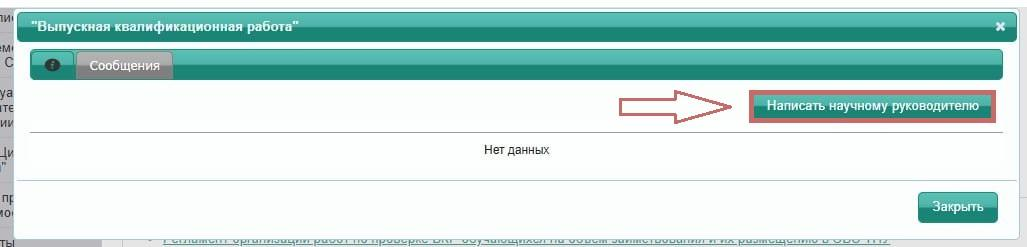](https://devdocs.tpu.ru/uploads/images/gallery/2025-11/rx4image.png) Для отправки скорректированной ВКР необходимо: - Проверить новый документ на плагиат. - Заменить файл в заявке. Описание отправки ВКР на проверку на плагиат описана [здесь](https://devdocs.tpu.ru/books/proverka-na-plagiat/chapter/proverka-na-plagiat). [](https://devdocs.tpu.ru/uploads/images/gallery/2025-11/fKLimage.png) После того, как руководитель принял ВКР, заявка отправляется во вкладку **Макетирование ВКР для ЭБС.** [](https://devdocs.tpu.ru/uploads/images/gallery/2025-11/lO9image.png) Все необходимые действия по созданию макета, которым студент должен следовать, будут описаны научным руководителем во вкладке **Макетирование ВКР для ЭБС** вкладка **Сообщения**, а также в поле **Комментарии для студента** формы заявки. Для просмотра комментария нажмите на любую область поля или кликните на кнопку **редактировать**, затем в открывшемся окне выберите вкладку **Сообщения.** [](https://devdocs.tpu.ru/uploads/images/gallery/2025-11/3uLimage.png) После формирования макета ВКР (**в формате \*.pdf**), студент добавляет файл в заявку. Нажмите кнопку **Выбрать.** [](https://devdocs.tpu.ru/uploads/images/gallery/2025-11/zGhimage.png) Далее нажмите кнопку **Добавить/Изменить макет.** При необходимости, студент может изменить макет ВКР и загрузить его повторно в заявку. **Файл с макетом ВКР (в формате \*.pdf)** должен быть создан из файла в формате **\*.doc** следующим способом: в Microsoft Word в главном меню выбирается Файл / Сохранить как / выбор типа файла – PDF.Создание файла в формате \*.pdf путем сканирования или иным способом не допустимо!!!
При отсутствии замечаний у руководителя к работе, студенту поступает информация о том, что работа отправлена на контрольную проверку сотруднику НТБ (статус **На проверке в НТБ**). ВКР переходит из вкладки **Макетирование ВКР для ЭБС** во вкладку **Утвержденные ВКР**.Сотрудник НТБ может вернуть заявку на доработку студенту, указав причины.После контрольной проверки ВКР **размещается в ЭБС ТПУ**. Размещение ВКР в ЭБС происходит **в автоматическом режиме**. Деятельность студента по подготовке ВКР для размещения в ЭБС ТПУ на данном этапе завершена. После размещения ВКР в ЭБС ТПУ работа переходит из статуса **На проверке в НТБ** в статус **Размещен в ЭБС.** [](https://devdocs.tpu.ru/uploads/images/gallery/2025-11/YlSimage.png) При отсутствии замечаний у руководителя к работе, студенту поступает информация о том, что работа отправлена на контрольную проверку сотруднику НТБ (статус **На проверке в НТБ**). ВКР переходит из вкладки **Макетирование ВКР для ЭБС** во вкладку **Утвержденные ВКР**. Сотрудник НТБ может вернуть заявку на доработку студенту, указав причины. После контрольной проверки ВКР **размещается в ЭБС ТПУ**. Размещение ВКР в ЭБС происходит **в автоматическом режиме**. Деятельность студента по подготовке ВКР для размещения в ЭБС ТПУ на данном этапе завершена. После размещения ВКР в ЭБС ТПУ работа переходит из статуса **На проверке в НТБ** в статус **Размещен в ЭБС.** [](https://devdocs.tpu.ru/uploads/images/gallery/2025-11/md2image.png) # Thesis Submission to TPU Electronic Library System (for students) # Graduation thesis check ---Before uploading a thesis to the TPU Electronic Library System, authors must check it for plagiarism.
In **[My Account section for students](http://portal.tpu.ru/desktop/student/)** select the **Thesis Check** tab ([Проверка ВКР](http://portal.tpu.ru/desktop/student/antiplagiat)). [](https://devdocs.tpu.ru/uploads/images/gallery/2025-11/jJmimage.png) Selecting the **Thesis Check** tab (Проверка ВКР) opens a new window. In this window, click the button (Подать заявку на утверждение ВКР) to submit the thesis to the supervisor for review & approval. [](https://devdocs.tpu.ru/uploads/images/gallery/2025-11/Z9wimage.png) In the opened window fill out the following: 1. **Graduation Thesis File** (Файл выпускной квалификационной работы) – in this field select the file previously checked for plagiarism, using the correct document number. 2. **An abstract in Russian** is a brief summary of a thesis, which should not exceed 800 characters in length; 3. **An abstract in a foreign language\*** is a brief summary of a thesis written in a foreign language, which should not exceed 800 characters in length. \* – professional foreign language as per the curriculum [](https://devdocs.tpu.ru/uploads/images/gallery/2025-11/xgJimage.png) [](https://devdocs.tpu.ru/uploads/images/gallery/2025-11/WwEimage.png) **Subject Area** (Тематика) **(keywords in Russian and in a foreign language\*)** – 5 to 10 keywords or phrases. **The number of words/phrases in Russian must correspond to the number of words/phrases in a foreign language.** To add or delete lines, use the buttons and respectively. \* – professional foreign language as per the curriculum.If a student belongs to more than one group at the same time, select the proper group in the **Author** field
[](https://devdocs.tpu.ru/uploads/images/gallery/2025-11/Pqeimage.png) When you click the button (Отправить) in the lower right corner of the window, a confirmation box pops up on the screen, asking you to confirm sending the thesis to your supervisor. [](https://devdocs.tpu.ru/uploads/images/gallery/2025-11/cGAimage.png) If you do not fill out the required fields, you will receive a message highlighting the fields to be filled out. [](https://devdocs.tpu.ru/uploads/images/gallery/2025-11/4Pdimage.png) If all the fields are filled out correctly, the thesis will automatically be sent to your supervisor for review. [](https://devdocs.tpu.ru/uploads/images/gallery/2025-11/MEZimage.png) You can find comments from your supervisor, if any, in the **Messages** tab (Сообщения). Message notifications will also be sent to your e-mail address at TPU domain. To view the comments, click anywhere in the field or click the button , then in the opened window select the **Messages** tab (Сообщения).In the opened window, you can see supervisor's comments, as well as the attached file with comments (if any). [](https://devdocs.tpu.ru/uploads/images/gallery/2025-11/Ktyimage.png) A student can also send a message to his/her supervisor (message delivery notification will also be delivered to your e-mail address at TPU domain). To write a message, click the **Message my Supervisor** button (Написать научному руководителю). [](https://devdocs.tpu.ru/uploads/images/gallery/2025-11/lyiimage.png) Steps to submit a revised thesis: - Check a new document for plagiarism. - Replace the original file in the application form. [](https://devdocs.tpu.ru/uploads/images/gallery/2025-11/uwfimage.png) Once a thesis is approved by a supervisor, the application is transferred to the **Thesis Formatting for Electronic Library System** tab (Макетирование ВКР для ЭБС). [](https://devdocs.tpu.ru/uploads/images/gallery/2025-11/6vbimage.png) All the formatting requirements will be outlined by your supervisor in the **Thesis Formatting for Electronic Library System** tab (Макетирование ВКР для ЭБС) **Messages** tab (Сообщения), as well as in the in the field **Comments for Student** (Комментарии для студента) of the application form. To view the comments, click anywhere in the field or click the button , then in the opened window select the **Messages** tab (Сообщения) . [](https://devdocs.tpu.ru/uploads/images/gallery/2025-11/rRnimage.png) Upon completion of thesis formatting (**in \*.pdf format**), upload the file to the application by clicking the **Select** button (Выбрать). [](https://devdocs.tpu.ru/uploads/images/gallery/2025-11/CAsimage.png) Next, click the **Add/Replace a Thesis File** button (Добавить/Изменить макет).A student can edit a formatted thesis file and reupload it to the application, if necessary.**The formatted thesis file (in \*.pdf format)** should be converted from \*.doc file as follows: in Microsoft Word File Menu choose File / Save as / File Type – PDF. Do not create a **\*.pdf file by scanning or any other way!!!** [](https://devdocs.tpu.ru/uploads/images/gallery/2025-11/mysimage.png) In case there are no comments from a supervisor, a student receives a notification that the paper is submitted to a Science & Technology Library (STL) officer for a final check (**STL Check** status (На проверке в НТБ).The thesis file is transferred from **Formatting for Electronic Library System** tab (Макетирование ВКР для ЭБС) to **Approved Thesis** tab (Утвержденные ВКР).An STL officer may return a thesis to a student for revision, stating the reasons. After the final check, the thesis is automatically deposited in TPU Electronic Library System. At this stage, the student's steps to prepare the thesis for depositing it in TPU Electronic Library System are completed. After that, the **STL Check** status (На проверке в НТБ) changes into **Deposited in Electronic Library System** status (Размещен в ЭБС). [](https://devdocs.tpu.ru/uploads/images/gallery/2025-11/Pbiimage.png) # Индивидуальные образовательные траектории Авторизуйтесь в [личном кабинете студента](https://lk.tpu.ru/): введите логин и пароль, затем нажмите кнопку **Вход**. [](https://devdocs.tpu.ru/uploads/images/gallery/2026-08/avtorizaciia.jpg) После авторизации в личном кабинете студента откроется его интерфейс. [](https://devdocs.tpu.ru/uploads/images/gallery/2026-08/KUzris1.jpg) Перейдите в раздел** Учебная деятельность**. [](https://devdocs.tpu.ru/uploads/images/gallery/2026-08/irSris-2.jpg) В разделе **Учебная деятельность** выберите Индивидуальные образовательные траектории. [](https://devdocs.tpu.ru/uploads/images/gallery/2026-08/ris-4.jpg) В открывшемся окне выберите необходимый модуль.Построение индивидуальной траектории обучения является неотъемлемой частью образовательного процесса в ТПУ. Выбор дисциплин и модулей каждый обучающейся осуществляет самостоятельно.
[](https://devdocs.tpu.ru/uploads/images/gallery/2026-08/vybor.jpg)